
Update: The Publish tool is now located under the Schedule Tools tab on the right side of the calendar page. See the screenshot below for its exact placement.
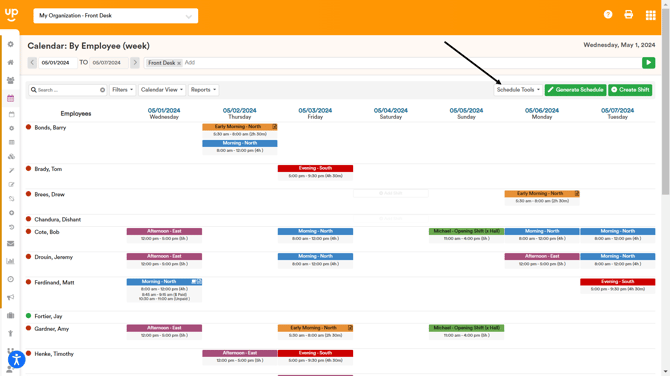
From the Schedule Calendar, managers can publish, unpublish, or delete shifts individually or in bulk.
Publishing and unpublishing control whether employees can see shifts. Deleting removes shifts from the Schedule Calendar.
Published vs. Unpublished Shifts
Published and unpublished shifts will look different on the manager's Schedule Calendar.
Published shifts appear as solid shift blocks and are visible to employees.
Unpublished shifts have diagonal lines through them. Managers can still see these shifts, but employees cannot.
Publish or Unpublish an Individual Shift
To publish or unpublish a single shift:
- Go to Schedule > Calendar.
- Locate the shift you want to update.
- Hover over the shift.
- Select the Checkbox to change its publish status.
When a shift is unpublished, diagonal lines will appear through the shift.
When a shift is published, it will appear as a solid shift block.
Publish or Unpublish Multiple Shifts
Use the Publish/Unpublish Tool when you need to update multiple shifts at once.
- From the Schedule Calendar, open the Publish/Unpublish Tool.
- Choose whether you want to Publish Shifts or Unpublish Shifts.
- Select the position or positions you want to update.
- Choose whether you want to update all applicable shifts or shifts within a specific date range.
- Select which shifts you want to update.
- Complete the publish or unpublish action.
You can work with multiple positions at once as long as those positions are loaded on the Schedule Calendar.
Publish or Unpublish Available Shifts Only
Available shifts can be published or unpublished separately from shifts that are already assigned to employees.
This is helpful if you want employees to see their assigned schedule but do not want available shifts to appear along with it.
To unpublish only available shifts:
- Go to Schedule > Calendar.
- Open the Publish/Unpublish Tool.
- Select Unpublish Shifts.
- Select the position or positions you want to update.
- Choose the applicable date range.
- Select Available Shifts Only.
- Complete the unpublish action.
The available shifts will remain on the manager's Schedule Calendar with diagonal lines through them, but employees will not be able to see them.
Your assigned employee shifts can remain published.
Important: Creating an available shift and publishing an available shift are separate actions. An available shift can remain on the manager's calendar without being visible to employees as long as it is unpublished.
Publish or Unpublish Shifts for a Specific Employee
The Publish/Unpublish Tool can also be used to update shifts for a specific employee.
After selecting your position and date range, choose the employee whose shifts you want to publish or unpublish and complete the action.
This allows you to update one employee's shifts without changing the publish status of the entire schedule.
Publish or Unpublish All Future Shifts
The Publish/Unpublish Tool also allows you to publish or unpublish all applicable shifts from the current date into the future for the selected positions.
Use this option carefully, especially if you have Available Shifts on the calendar that you do not want employees to see.
If you only want to update certain shifts, use a specific date range or one of the available shift or employee filters instead.
Delete Shifts
Deleting shifts is a separate action from publishing or unpublishing shifts.
Publishing and unpublishing control employee visibility. Deleting removes the shift from the Schedule Calendar.
Delete an Individual Shift
To delete a single shift:
- Go to Schedule > Calendar.
- Locate the shift you want to remove.
- Hover over the shift.
- Select the Red Trash Can.
- Choose whether you want to notify the employee about the deletion.
- Confirm the deletion.
If you choose to notify the employee, they will receive a notification based on their selected notification preferences.
Delete Multiple Shifts
Use the Delete Tool when you need to remove multiple shifts at once.
- From the Schedule Calendar, open the Delete Tool.
- Select the position you want to update.
- Enter the specific date range containing the shifts you want to delete.
- Choose whether you want to delete shifts for:
- All employees
- A specific employee
- Available shifts only
- Choose whether you want to include:
- Published shifts
- Unpublished shifts
- Both
- Select Delete.
When deleting shifts in bulk, you must select a specific date range. The Delete Tool does not provide an option to automatically delete every future shift.
Recover Accidentally Deleted Shifts
If you accidentally delete shifts, SubItUp includes a tool that can be used to recover deleted data.
Go to Schedule > Recover Shifts to access the recovery options.
Important Notes
- Published shifts are visible to employees.
- Unpublished shifts are only visible to managers.
- Unpublished shifts are identified by diagonal lines on the manager's Schedule Calendar.
- Available shifts can be published or unpublished separately from assigned employee shifts.
- Use Available Shifts Only when you want to change the visibility of available shifts without changing assigned shifts.
- The Publish/Unpublish Tool controls shift visibility.
- The Delete Tool is separate and removes shifts from the Schedule Calendar.
- Bulk publish and unpublish actions can be filtered by position, date range, employee, or available shifts.
- Bulk deletion by selecting all shift on calendar or selecting a specific date range.
- Deleted shifts can be recovered by going to Schedule > Recover Data in your navigation.
If you have questions about publishing, unpublishing, or deleting shifts, contact SubItUp Support HERE.