
Access the Assign Available Shifts Tool
- Log in to SubItUp.
- From the left-side navigation menu, select Schedule > Calendar.
- In the upper-left corner, choose the desired Calendar View.
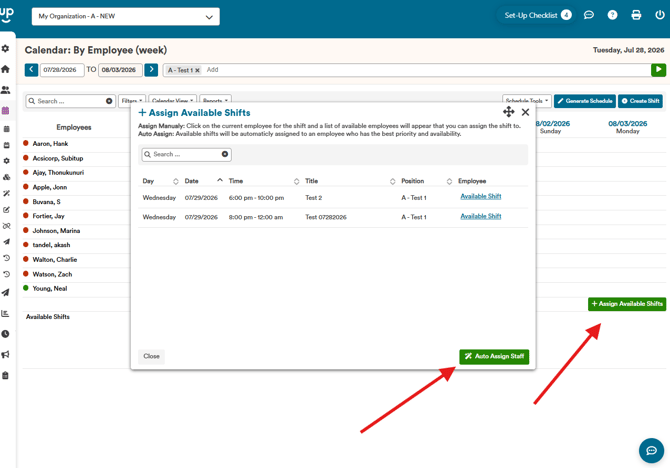
- Click the green Assign Available Shifts button located in the bottom-right corner of the Schedule Calendar.
The Assign Available Shifts window will open.
Assign Available Shifts
Once the Assign Available Shifts window is open, you can:
- Assign shifts manually by selecting employees for individual available shifts.
- Select Auto Assign to have SubItUp automatically assign employees to available shifts based on your scheduling configuration and employee availability.
Warning: Once Auto Assign has been run, the assignments cannot be automatically reversed. Review your available shifts and confirm you're ready to proceed before selecting Auto Assign.