![subitup-white-small.png]](https://support.subitup.com/hs-fs/hubfs/subitup-white-small.png?height=40&name=subitup-white-small.png)
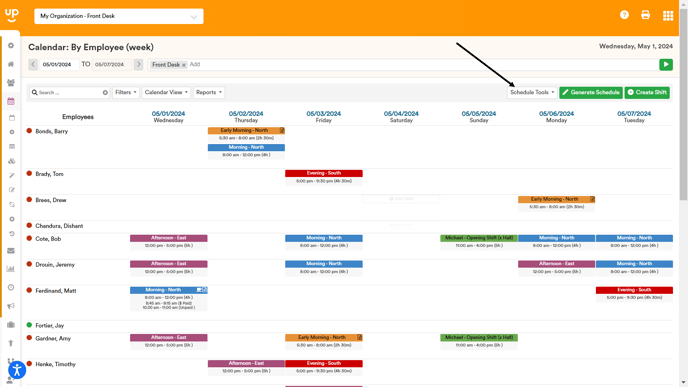
UPDATE: The Manage Breaks tool is now underneath the "Schedule Tools" tab on the right-side of the calendar page. Please see screenshot below for exact placement.
To create a break template:
- In the left-hand toolbar, select SCHEDULE.
- Select CONFIGURE.
- Select BREAK.
- Click on ADD NEW BREAK.
- Name your break template in the NAME.
- Select a POSITION in the position drop-down menu.
- Enter the shift RANGE TIME to apply a break.
- For example, if you want to apply a 15 min. break to all shifts that are between 0-4 hours long then you will enter “0” hr. “0” min. TO “4” hrs. “0” min.
- In the BREAKS field create a BREAK NAME.
- Enter the number of minutes of the break length.
- If it’s a PAID break, click on the checkbox.
- If you’d like to add another break within this range of time, then click the green ADD button and repeat steps 8-10.
- Using the same example above, if you offer two paid or non-paid breaks 15 min. breaks within the 4-hr. shift time.
- Click SAVE.